Customize the widget's appearance and behavior
Set branding, greetings, language, CAPTCHA, optional OTP, delivery methods, visitor limits, and animations, then test the published widget.
On this page
Settings → Widget controls the floating chat experience on your website. Use its preview while editing, then test the real embed after saving.
Before you begin
Have your brand color, optional avatar image URL, a short greeting, and up to four useful starter questions ready. Use a publicly accessible image URL for an avatar. Check your plan before relying on branding removal or other restricted options.
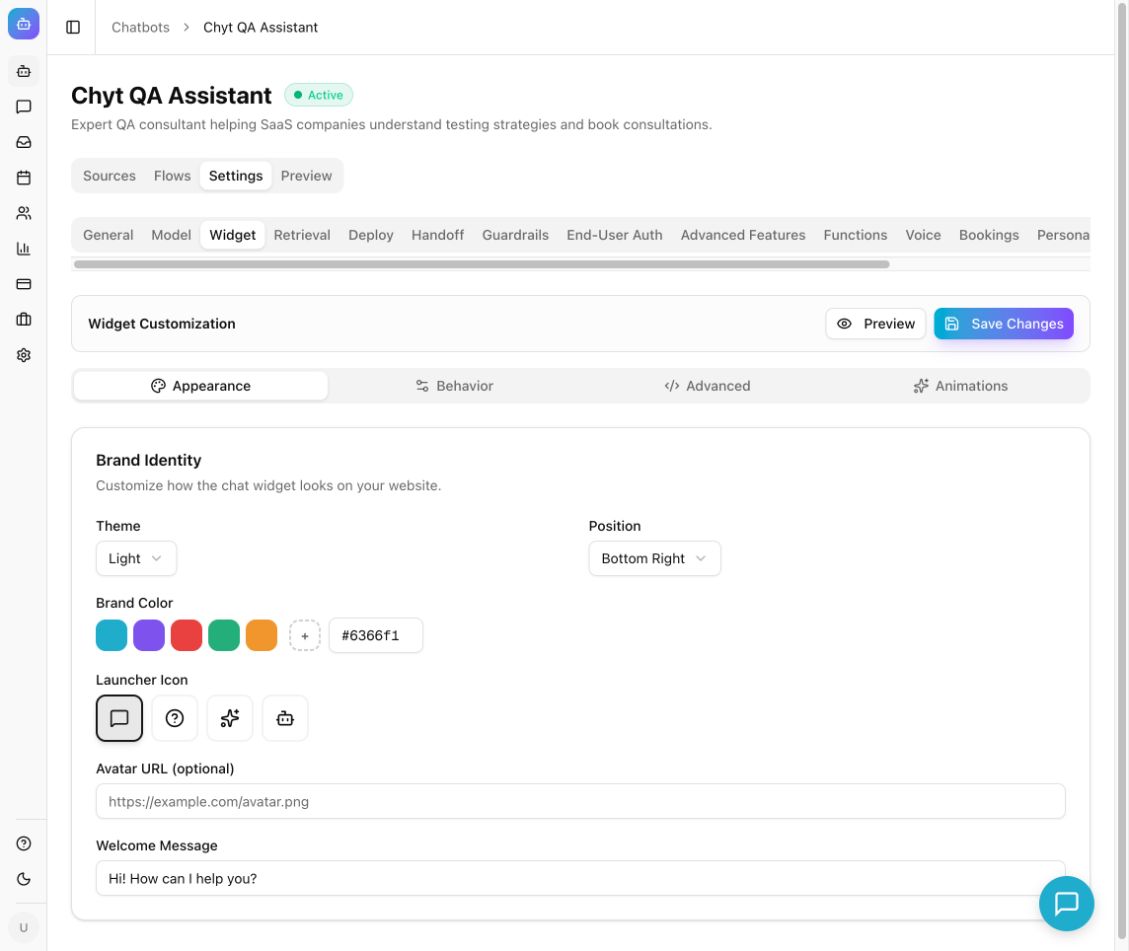
Example from the Newten dashboard (September 2026).
Set the appearance
- Open your chatbot's Settings → Widget.
- Select Appearance.
- In Brand Identity, choose Theme: Light or Dark.
- Set Position to Bottom Right or Bottom Left.
- Choose Brand Color using a preset or a color value.
- Under Chat launcher, choose Classic icons, Your image, or Animated buddies. Classic icons include Chat Bubble, Help Circle, Sparkle, and Robot.
- For a buddy, browse 25 characters: 10 robots, 6 cats, 8 people, and 1 bear. Filter by All, Robots, Cats, People, or Other animals, or search by name or style. Select a character card; filtering alone keeps your current selection. For an image, enter a publicly accessible HTTP or HTTPS image URL.
- Choose a launcher size. Icon and image launchers also offer circle or rounded-square shapes. Brand color changes your buddy’s clothing or accents while keeping its skin tone and markings.
- Use Buddy motion to enable its eye tracking, blinking, resting, sleeping, and standing behavior. Turning this off, turning off the main animation switch, or a visitor’s reduced-motion preference keeps the buddy still in its resting pose. Touch visitors can tap to open chat without pointer tracking.
- Set Activity interval to 10, 15, 20, or 25 seconds to choose how often your buddy greets visitors. The default is 20 seconds, and the control is disabled when Buddy motion is off.
- Set the separate In-chat avatar URL if you want a portrait in the chat header and messages, then enter Welcome Message.
- Click the launcher in the live preview to open and close the chat preview, then select Save Changes. Reload the page containing the embed to see the saved appearance.
Existing widgets retain their previous avatar or default launcher until you explicitly choose a launcher style. If a custom launcher image fails to load, the widget uses a classic icon so visitors can still open chat. Buddy animation runs in the browser without a video download or an AI request.
Keep the greeting short and specific, for example: “Hi! Ask us about setup, plans, or your account.” Verify that the brand color provides readable contrast in the preview.
Choose your chat buddy
The Robots collection includes Orbit, Pixel, Nova, Bolt, Echo, Luna, Astro, Gear, Sprout, and Pebble. The Cats collection includes ginger Mochi, tuxedo Tux, Siamese Suki, calico Cleo, fluffy Persian Cloud, and striped tabby Pepper. People offers Aria, Leo, Maya, Kai, Zoe, Omar, Ava, and Sam, with different hairstyles, skin tones, glasses, and outfits. Maple the bear appears under Other animals.
With motion on, your buddy sits or rests by default and greets visitors at the saved Activity interval. It follows the pointer with its eyes while awake. Moving the pointer, clicking or tapping, typing, or scrolling anywhere on the page counts as website activity. After 30 seconds without website activity, it closes its eyes and sleeps. It briefly wakes at each activity cycle and sleeps between cycles until the visitor interacts again. Public-library greetings last 2.5 seconds; workspace-exclusive characters can perform their own short routines. Hovering over or focusing the launcher also wakes it.
Open chat and the buddy moves beside the panel’s left edge, aligned with its bottom, keeping the message area and composer clear. It continues its animations and pointer reactions during the conversation. New sent or received messages wake it, and it stays awake while a reply is arriving or being revealed. After 30 seconds without new messages, it sleeps between activity cycles; moving around the website does not reset this conversation timer. Closing chat returns it to the selected launcher position and website-activity sleep behavior. If your website sends a supported widget notification, the buddy wakes and stands for 6.5 seconds before resting again; the cue does not open chat or send a message. A notification cue requires your website’s event integration and is not an automatic message-delivery service.
Try the character in Live Preview on desktop, or open Preview on a smaller screen. The preview uses the same character behavior as the embed. Motion pauses on hidden pages; reduced-motion visitors see a static resting character and can still open chat.
Configure behavior
- Select Behavior.
- In Persona & Tone, choose Persona Mode and Tone.
- Add Custom Greeting (optional) if needed. The form supports a {chatbot_name} placeholder.
- Under Widget Language, choose Language for interface labels such as buttons and the input placeholder.
- In Starter Questions, select Add Question and add up to four concise questions.
- Configure AI Disclaimer and its text as appropriate.
- Select Save Changes.
The widget language controls interface labels; it does not itself translate your source documents or guarantee response quality in a particular language. Test actual questions in every language you intend to support.
Configure visitor contact, CAPTCHA, and OTP
Open Chatbots → your chatbot → Settings → Widget → Behavior and find Visitor contact & protection. Read any service availability or activation messages before testing. Existing chatbots keep CAPTCHA and OTP enabled by default.
- Set CAPTCHA protection to control the automated-traffic check for this chatbot. This switch is independent of OTP.
- Set Require OTP. When on, visitors must verify one offered contact method after four accepted messages. When off, no verification code is sent. Both settings require name and email before the first message of every conversation, with optional phone and organization. Submitted details remain self-reported unless a matching contact method has already been verified.
- With OTP on, select at least one OTP delivery method: Email, SMS, or WhatsApp. Visitors can choose only selected methods that are available for this chatbot. The availability labels show which services are ready; selecting a method does not activate its provider.
- Under Message limits, set Messages per conversation and Messages per visitor per day within your plan's displayed maximum.
- Select Save Changes and test in a fresh public visitor session. Before the first message is sent, confirm that Tell us about yourself requests the conversation profile. If OTP is on, test its separate verification step after four accepted messages.
For Australian or other international clients who should not need a code, leave CAPTCHA protection on and turn Require OTP off. Visitors provide name and email, optionally add phone (for example +61 412 345 678) and organization, then provide explicit consent and select Save details and continue. The AI can use this profile in the current conversation. Replies may include the details and remain in conversation history. New conversations require confirmation again; ordinary messages in the same conversation do not repeat the form. In Visitor contacts, records without a matching OTP proof show Unverified.
When OTP is on, Email verifies only the email address; phone and organization remain optional fields. SMS and WhatsApp require an international-format phone number and verify only that number. Name and organization remain self-reported. Selecting a method does not send a code until the visitor submits the form. See Visitor contact and verification for the full test steps.
Message limits remain active independently of the CAPTCHA and OTP switches wherever the contact policy is enabled. The daily allowance is shared across that visitor's conversations with this bot and resets at 00:00 UTC; opening a new chat does not reset it. Edits and regenerated replies count as additional requests. These safeguards are separate from the workspace's AI credits and unlimited deterministic-flow conversation entitlement.
Each new conversation still requires its own profile when visitor message limits are inactive. Limit activation and provider availability are managed by the platform. Saving settings does not activate an unavailable service.
Tune animations
- Select Animations.
- Set Enable animations.
- Review Answer delivery, Bubble entrance, Typing indicator, and Animation speed.
- Choose whether to Animate welcome message.
- Use Try the conversation to preview the effect. This preview does not send messages.
- Select Save Changes and test a real answer in the embedded widget.
The welcome animation runs on first open; reopening the widget does not replay it. Disabling animations shows complete answers without decorative motion.
Advanced styling and branding
Advanced → Custom CSS applies inside the widget's Shadow DOM. Make a small change, save it, and test the actual embed rather than assuming your website's global CSS will style the widget.
Remove “Powered by Newten” is controlled by plan eligibility. If the switch is disabled, follow the plan indication shown in the dashboard.
Expected result: saved branding and behavior appear in the published widget, and the launcher, greeting, starter questions, and responses remain usable on desktop and mobile.
Troubleshooting
If changes are absent, confirm Save Changes completed, reload the visitor page, and check that its embed uses this chatbot's ID. If the widget cannot answer, use deployment checks and model checks. For response style beyond the widget's basic tone, configure Persona.