Configure visitor contact, OTP, CAPTCHA, and sign-in
Collect a profile before each conversation, let the AI use it in that chat, and configure independent OTP, CAPTCHA, delivery methods, limits, and sign-in.
On this page
Before you begin
Contact collection, OTP verification, CAPTCHA protection, and end-user sign-in serve different purposes. Every new conversation collects a name and email before its first message. Phone and organization are optional. With explicit consent, the AI uses that conversation’s profile to personalize responses. This collection does not send a code. OTP verifies access to one contact method; it does not create a workspace member or prove legal identity. CAPTCHA checks for automated traffic independently of OTP. End-user sign-in supports the chatbot's authenticated experience.
Configure visitor contact and protection
- Open Chatbots → your chatbot → Settings → Widget → Behavior.
- Find Visitor contact & protection and read any availability or activation messages. Saving a preference does not activate a platform service or an unavailable delivery provider.
- Set CAPTCHA protection independently. Keep it on to check for automated traffic, including when OTP is off. Turn it off if this chatbot should not require the CAPTCHA check.
- Set Require OTP. When it is on, visitors must verify one offered contact method after the first four accepted messages. When it is off, no code is sent. Both settings still require the conversation profile before the first message; submitted details are unverified unless the same contact method has a matching earlier verification.
- If OTP is on, choose one or more OTP delivery methods: Email, SMS, or WhatsApp. Visitors see only your selected methods that are available for this chatbot. Read each method's availability label; selecting a method does not provision its delivery service. Keep at least one method selected while OTP is on.
- Under Message limits, set Messages per visitor per day and Messages per conversation within the plan maximum shown. The current default is 15 messages. Turning off OTP or CAPTCHA does not turn off these limits.
- Select Save Changes to save the widget configuration.
CAPTCHA protection and Require OTP are enabled by default for existing chatbots. Contact collection is independent of message-limit activation: each new public conversation still needs its own profile when visitor limits are inactive. Delivery-provider availability and message-limit activation are managed by the platform. Test the currently available experience before sharing it with clients.
Test the visitor experience
- Open a fresh public visitor session rather than relying only on the authenticated dashboard preview. Complete CAPTCHA if this chatbot requires it.
- Attempt the first message. Before that message is sent, Tell us about yourself asks for Name and Email, plus optional Phone number and Organization. Leave the optional fields blank or enter an international-format phone number such as +61 412 345 678 and a self-reported organization.
- Read the notice and provide consent to share these details with the chatbot operator and AI for this conversation. AI replies may include the details and remain in conversation history. Select Save details and continue; this does not send an OTP.
- Ask a suitable test question, such as “What name and organization did I provide?” Check that the AI uses this conversation's submitted details and does not invent missing optional values. The profile is context for the conversation, not verified identity or a command to the AI.
- Continue in the same conversation. The profile form should not reappear on every message. Start a new conversation and confirm the profile again; previously entered details may be prefilled, but consent is never selected for you.
- With Require OTP on, the separate code step applies after four accepted messages when no matching contact method is already verified. Choose an available method and review the prefilled profile. Email leaves phone and organization optional and verifies only the email address. WhatsApp and SMS require an international-format phone number and verify only that number. Select Send verification code and have the tester enter their own received code directly in the form.
- In Visitor contacts, confirm that unverified submissions show Unverified, that organization remains self-reported, and that OTP records identify only the method actually verified. Your chosen message limits still apply independently.
For Australian or other international clients who should not need a code, turn off Require OTP and leave CAPTCHA protection on. Every new conversation still collects name and email, with optional phone and organization, without depending on SMS or WhatsApp delivery.
The daily allowance is shared across that visitor's conversations with the same chatbot and resets at 00:00 UTC. A new chat does not reset it. The conversation allowance applies to the conversation's lifetime. Edits and regenerated replies count as additional requests. These visitor safeguards remain separate from unlimited deterministic flow conversations included in an active subscription.
Choose the end-user chat mode
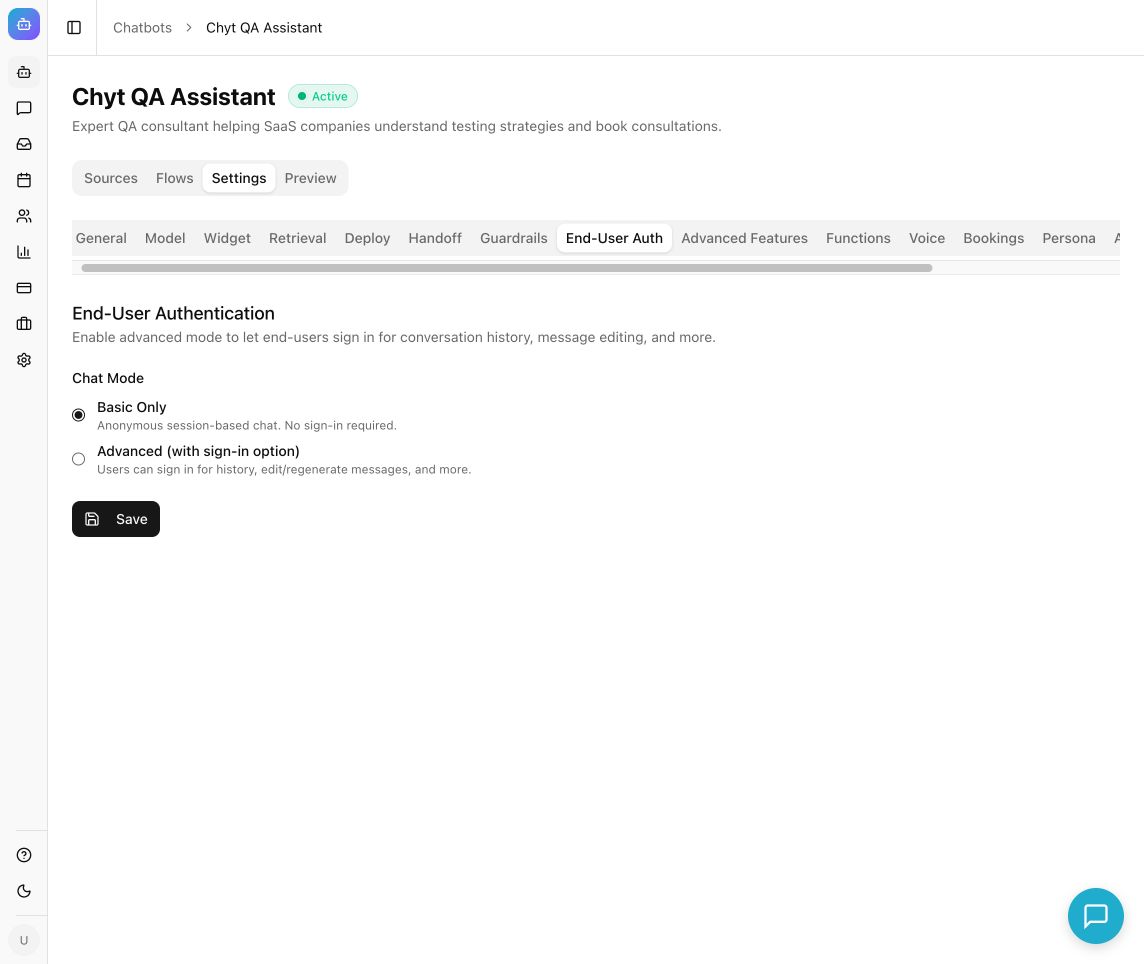
Example from the Newten dashboard (September 2026).
- Open Settings → End-User Auth.
- Under Chat Mode, choose Basic Only for session-based anonymous chat, or Advanced (with sign-in option) for supported signed-in history and message features.
- In advanced mode, set Allow new user registration, select Email / Password and/or Google OAuth under Authentication Providers, and decide whether to Allow anonymous fallback.
- Select Save and test with a visitor account. Provider setup must be available for the selected sign-in option.
- If anonymous fallback is off, verify that the required-sign-in experience appears as intended. Basic mode and anonymous fallback do not bypass platform bot protection or the active visitor contact policy.
Identified website visitors
If your own application supplies a widget userId, your developer must also generate its userHash on your authenticated server using the chatbot's private identity secret. Names and emails alone do not grant access to another visitor's history. Keep the secret on the server and use the supported identity integration; never put it in the embed script.
What you should see
The public chatbot follows the configured CAPTCHA, contact, OTP, sign-in, and message-limit settings. Visitor contacts distinguishes unverified contact submissions from contacts with an OTP-verified email address or phone number. Collecting details does not verify them. Consent to contact collection or verification is not marketing opt-in.
Troubleshooting
- No contact or OTP prompt in preview: signed-in workspace previews have their own access controls. Test the first message in a fresh public conversation. With Require OTP off, expect the same required profile form without a code.
- Code expired or incorrect: request a fresh code when the form permits it and use the current code in that form.
- No delivery method available: select an available method or turn off Require OTP to collect details without a code. Contact support if delivery setup is needed; selecting a method does not provision an OTP provider.
- CAPTCHA still appears after OTP is disabled: CAPTCHA protection has its own switch. Change it separately only if you also want to disable that check.
- A saved contact says Unverified: this is expected when OTP is off. An entered email address or phone number alone is not proof of ownership.
- Visitor remains limited after starting a new chat: the daily safeguard is shared across conversations with that bot.
- A returning session behaves incorrectly: refresh the chat page and complete any fresh profile confirmation, verification, or sign-in prompt.
- The contact notice has changed: refresh the page to load the current form before consenting. Older cached widgets cannot submit consent to AI use using the previous notice.
- The AI repeats outdated details: check the profile submitted for this conversation. Erasing a profile stops future profile context, but does not remove details already present in messages or generated replies.
Continue learning
Leads and visitor contacts · Workspace security · Plans and allowances