Manage leads and visitor contacts
Review sales signals separately from contact verification, update lead stages, and manage contact exports or erasure.
On this page
Before you begin
Choose the correct workspace. Leads contains sales profiles from conversations; Visitor contacts contains conversation profiles collected before the first message, including profiles with and without OTP verification. Owners and admins can access visitor-contact controls. A sales score or contact OTP does not establish legal identity or marketing permission.
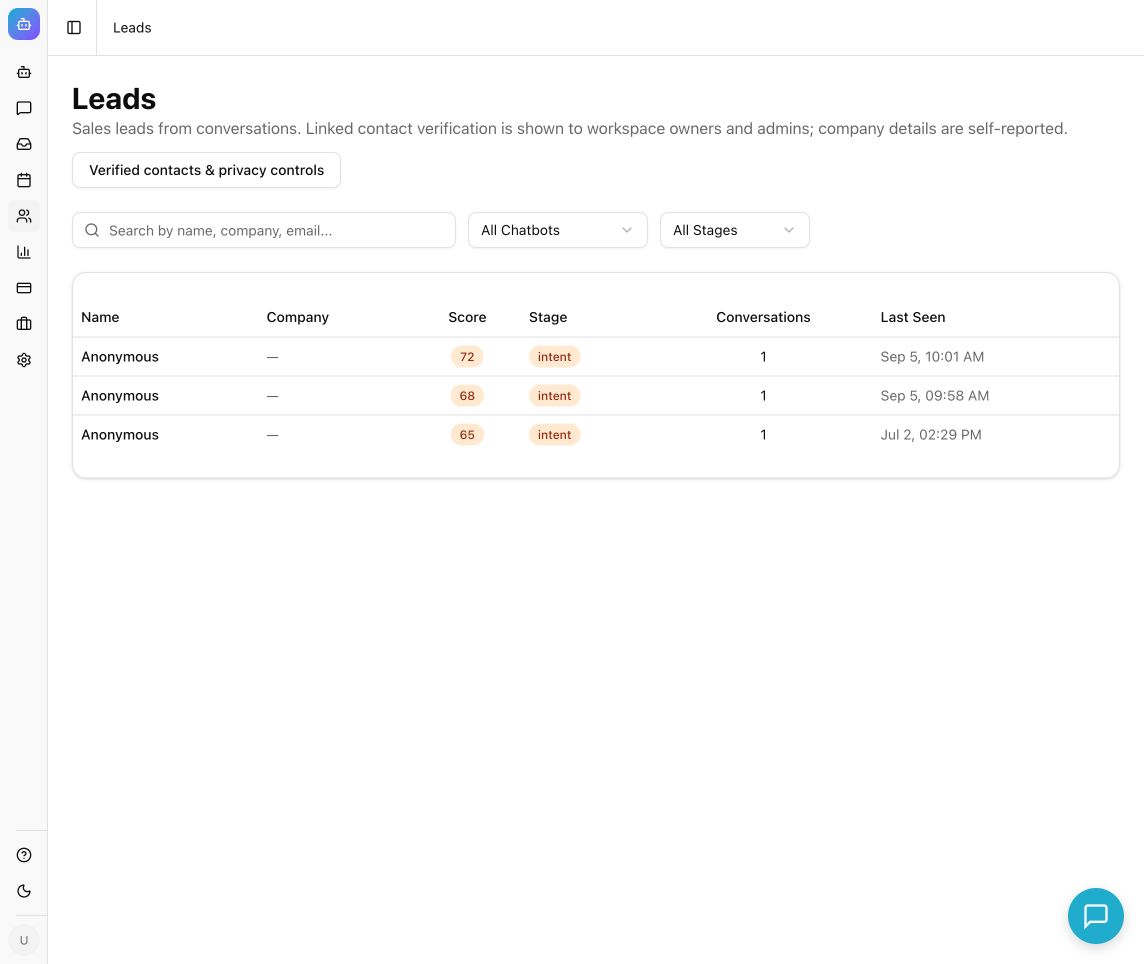
Example from the Newten dashboard (September 2026).
Review and qualify a lead
- Open Leads from the dashboard.
- Search by name, company, or email. Use All Chatbots and All Stages to narrow the list.
- Open a lead and inspect Profile, Qualification, and linked Conversations.
- Read the source conversation before relying on a buying signal or score. Company and profile information can be self-reported or inferred; the optional organization in a conversation profile is self-reported and is not verified by OTP. A profile is separate from a sales lead.
- Review the current Stage in Qualification and choose the stage that reflects your team's actual assessment. Confirm the update succeeds.
- Follow up through your team's authorized process or configured integration. A lead appearing in Newten does not itself send an email, create a CRM record, or book a meeting.
Review a visitor contact
- As an owner or admin, open Visitor contacts.
- Find the record for the appropriate chatbot and review name, email, phone, optional organization, collection time, consent, and expiry. Each conversation has its own profile.
- Read the method badge: Unverified, WhatsApp verified, SMS verified, or Email verified. A verification badge proves access only to the matching contact method at verification time. Name and organization remain self-reported; optional fields can be Not provided.
- For a justified contact-data request, select Export JSON on the relevant record and store the downloaded file according to your organization's access rules. The export includes the recorded profile fields, including organization when supplied.
- To erase contact details, select Erase contact, read Erase contact details?, and confirm with Erase contact details only for the intended contact.
- Check the success message and reload the list if needed. Erasure clears the relevant name, email, phone, organization, and contact consent. It stops these form details from being supplied to future AI responses, but does not remove details already present in conversation text.
What you should see
Lead stages reflect your review, while visitor-contact records distinguish self-reported profiles from proven contact methods. Contact export and erasure are audited. Contact records expire after 90 days; background cleanup runs every 15 minutes while the service is running, and outages can delay physical cleanup.
Erase contact does not erase conversation history, source documents, downloaded exports, or backups. Daily visitor usage remains in force, and a keyed contact association lasts until the next UTC day. For a broader privacy request, use your organization's request process and Newten's privacy contact.
Troubleshooting
- No visitor contacts: the visitor may not have submitted the profile form, or you may be viewing a different workspace, chatbot, or page.
- A profile has no organization: the field is optional. A separate lead may have different company information; do not infer an organization from an email domain without checking.
- Contact controls are unavailable: verify that you are currently an owner or admin. An API key is not a substitute for that signed-in access.
- A pure flow has no AI score: deterministic flow chats skip model-assisted extraction and scoring. Add an explicit Save lead in Newten action after the visitor agrees to save usable enquiry details. The action creates or updates a lead without AI; the simulator only previews it. Do not treat an absent AI score as lack of interest.
- Export or erasure failed: retry only after resolving the error. The UI must confirm success before you report the action completed.
Continue learning
Visitor verification · Conversation review · Integrations and functions